
Looker Studio
Connect GetIntel to Looker Studio and report AI visibility, share of voice, citations and the AI answers themselves as native Looker Studio fields.
Put AI visibility into the client reports you already send with the Looker Studio connector. Every field arrives as a native Looker Studio dimension or metric, refreshed each time the report loads.
Open the connector Get your API key Copy the template reportSet it up
Section titled “Set it up”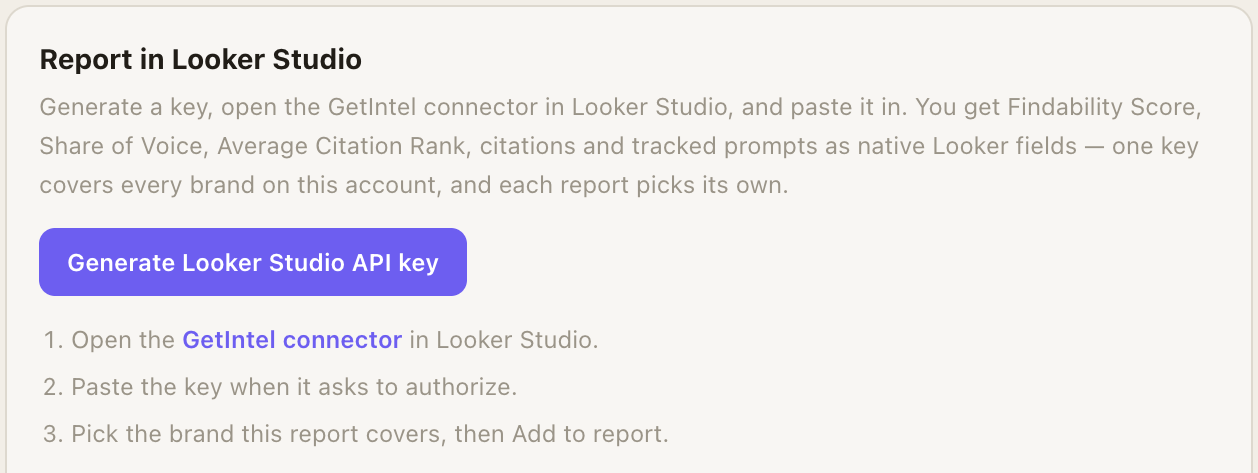
-
Generate a key. In GetIntel, open Integrations, find Looker Studio under Reporting, and click Generate Looker Studio API key. Copy it now: it is shown once.
-
Open the connector. Open the GetIntel connector in Looker Studio, click Authorize, and paste the key. Looker Studio checks it against GetIntel straight away.
-
Pick the brand and add it. Choose which brand this report covers, then Add to report. Every field below is now available to chart and filter.
Start from the template
Section titled “Start from the template”Rather not build the report yourself? Start from ours. It includes an overview a client can read on its own (visibility, share of voice and the per-engine breakdown), a prompt table sorted worst-first so you can see what to fix, the cited sources and competitors named instead of you, and what the AI actually said.
- From GetIntel: the Looker Studio panel in Integrations lists each of your brands with a Create report button that opens the template with that brand already selected.
- From here: copy the template report and pick the brand when Looker Studio asks.
The copy is yours. It authorizes with your own key, asks which brand it covers on first open, and you can rebrand and rearrange it freely.
Fields
Section titled “Fields”Data comes as one row per day, per tracked prompt, per engine, so you can roll up to one headline number or drill into a single question on a single engine.
Dimensions
Section titled “Dimensions”| Field | What it is |
|---|---|
| Date | The day the engines were asked. |
| Brand | The brand the row is about. For an agency, the client picked in the Brand dropdown. |
| Tracked Prompt | The buyer question, in the words a buyer would use. |
| AI Engine | Which engine answered. Only engines your plan tracks have data. |
| Source Domain | A domain the engine cited for this answer. Empty when it cited nothing. |
| Competitor Named | A competitor the engine named. Empty when it named none. |
| Result | recommended, mentioned (named without a recommendation), absent, or open (the answer named no vendor at all). |
| AI Answer | The answer the engine gave, truncated to 2,000 characters. Use it in a table, not a chart. |
Metrics
Section titled “Metrics”| Field | What it is |
|---|---|
| Visibility | The share of AI answers that name you across the tracked prompts, 0 to 100. Averages across whatever you group by. Older versions of the connector label this field Findability Score. |
| Share of Voice | Your share of all vendor mentions in these answers. |
| Average Citation Rank | Where you sit among the brands an answer names. Lower is better. |
| Citations | How many sources the answers cited, across all domains. Broken out by Source Domain, it counts that domain’s citations only. |
| AI Responses Analyzed | How many answers the row is based on. Use it as the denominator for your own rates. |
| Times Recommended | Answers that recommended you outright, not just mentioned you. |
Reading the numbers
Section titled “Reading the numbers”Blank is not zero. A blank Visibility value means nothing was measured that day. A zero means the engines answered and named you nowhere.
Failed runs are excluded. When an engine errors or returns no answer, the run is dropped rather than counted as an absence. AI Responses Analyzed counts the answers GetIntel actually received.
Source Domain and Competitor Named multiply rows. One answer citing five domains contributes to five rows, because the useful number there is “answers that cited this domain”. Keep those two dimensions off your headline totals.
Limits
Section titled “Limits”- A single request covers at most 180 days. Narrow the report’s date control for longer histories.
- A response returns at most 50,000 rows, or 5,000 when the table includes AI Answer. Larger requests are truncated.
Troubleshooting
Section titled “Troubleshooting”The brand dropdown is empty. The key was rejected, most often because it was cut short when copied or has since been revoked. Generate a new one in Integrations and paste it again.
A long date range returns nothing. Reports are capped at 180 days per request.
A recent day is empty. Data appears once that day’s scan has run. A brand added today has no history yet.
Turning off access. Revoke the key in Integrations. Every report built on it stops fetching immediately.